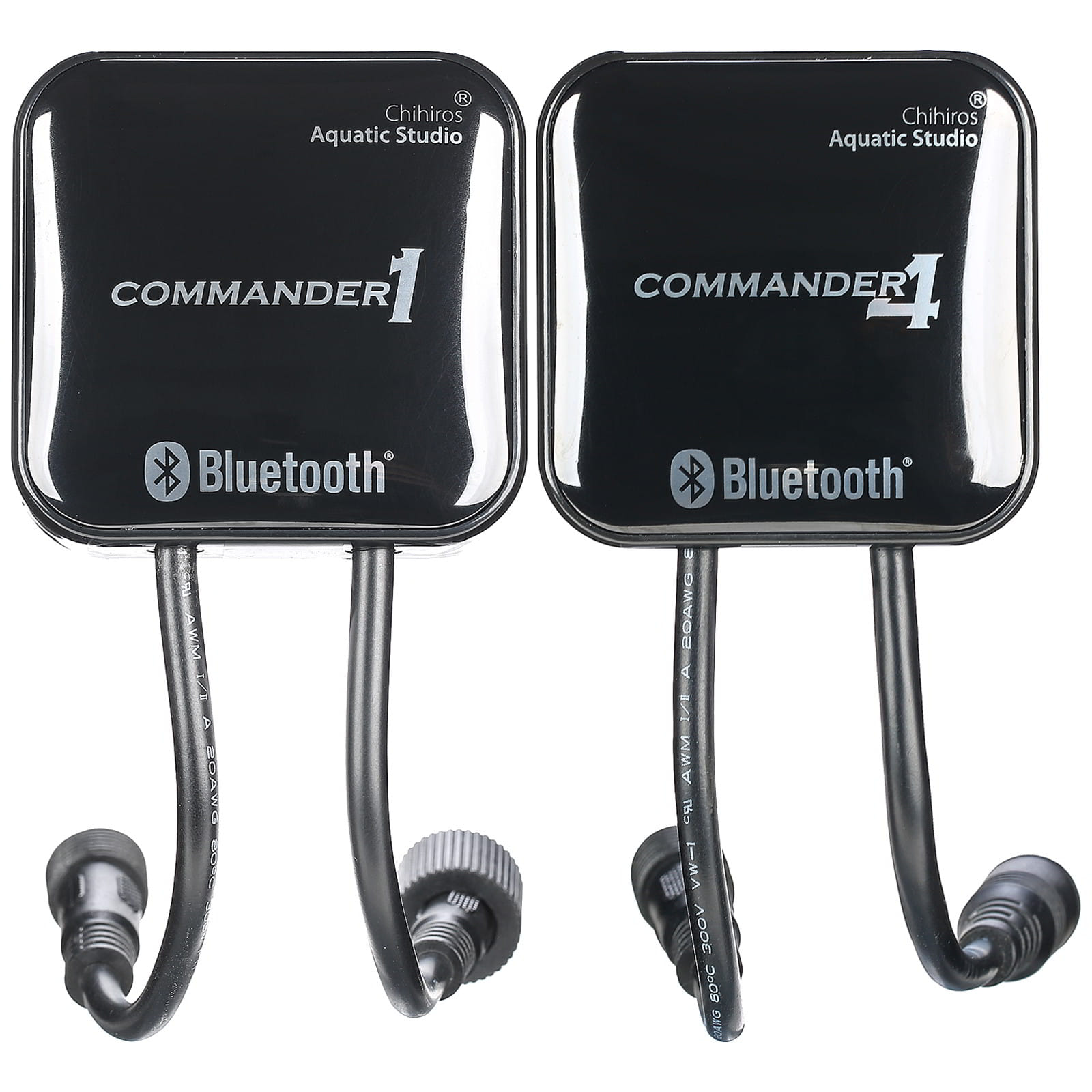
Guide: Chihiros Commander 1 & 4

By Aram Schneider Published Updated
Translated from German with AI assistance and reviewed by our editors.
Note: This article refers to the older app called "Chihiros Magic". Depending on your device, however, the new app "My Chihiros" may sometimes be necessary to establish a working system.
The Commander 1 or 4 is used to control an aquarium LED from Chihiros. This controller is operated via an app on a smartphone. In this guide we show you how to use the app correctly.
Installation
First, you should download the corresponding app from the store that matches the operating system of your smartphone (App Store for iOS, Google Play for Android). With this application you can control and program the matching LED lighting via Bluetooth using both the Commander 1 and the Commander 4 from Chihiros. You can find the app under the name "Chihiros Magic". Even though a few Chinese characters sometimes show up in the store, the app is in English and easy to use.
After installing and opening the app, the start screen appears, and after a short loading time, selection options for the various controllers and end devices that can be operated with this program are displayed. Here you select the corresponding controller.
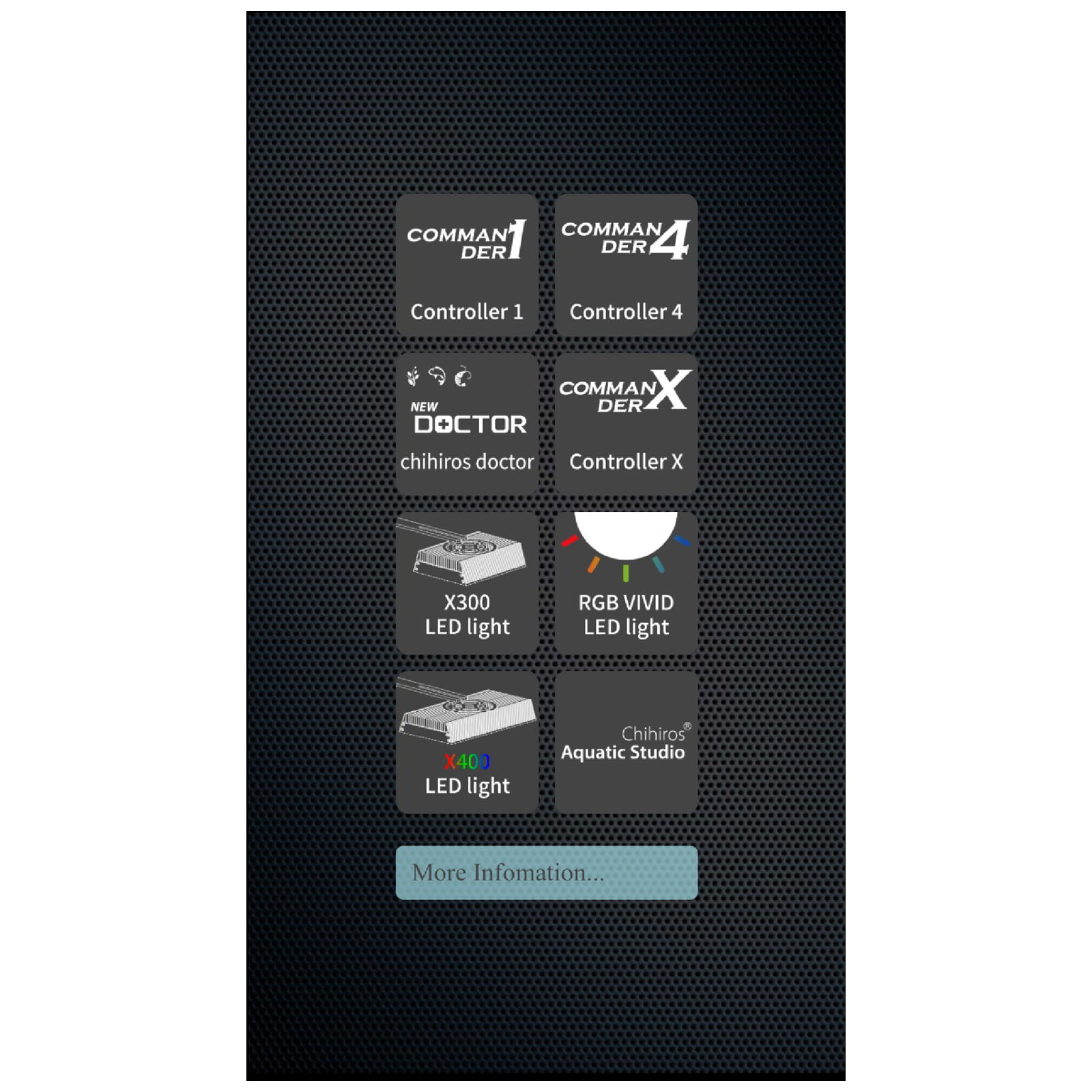
The Bluetooth function now switches on automatically. First, you need to select the appropriate interface. The Commander 1 is compatible with the following lamps of the Chihiros brand:
- C series
- A series
- A Plus series
- E series
- X100
- X200
- S series
- RGB series
- Wabikusa LED Light
With these lighting models and the Commander 1 LED controller, you can control and program the light intensity and a corresponding daylight curve. Twilight phases are therefore possible without any problem. Individual light colors, however, cannot be controlled.
Note: This article refers to the older version of the Chihiros Commander 1. A new model is now available here, which may therefore differ in shape and operation.
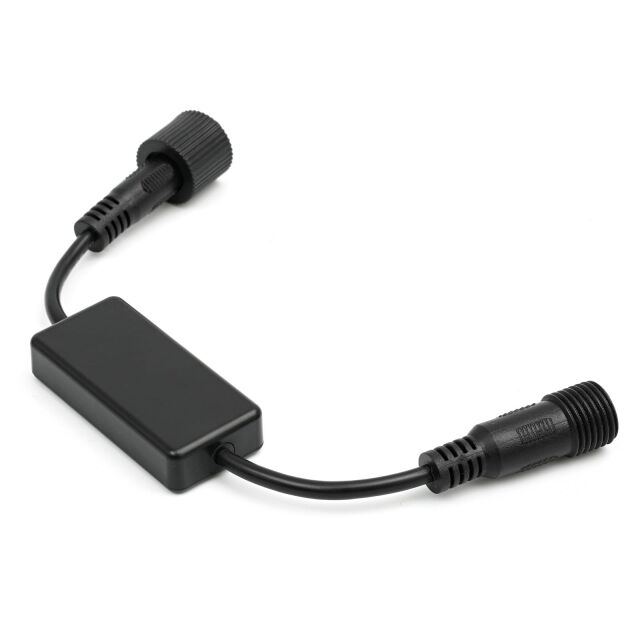
The new Commander 1.
The Commander 4 is the matching controller for the following Chihiros LEDs:
- WRGB
- A Plus RGB
- Vivid
With these RGB models, you can also control and program the individual color channels of red, green and blue individually with the Commander 4. Daylight curves including sunrise glow and blue moonlight can be implemented with ease using the Commander 4 and the matching lamp.
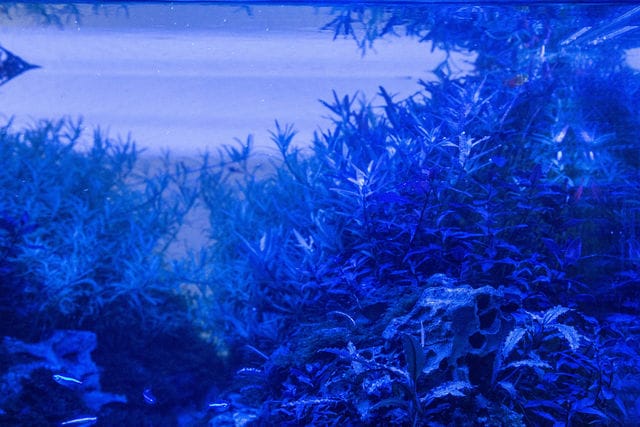
Blue light only, with a Chihiros RGB A Plus.
Once you have selected the right interface for your Chihiros lamp, a short search request via Bluetooth begins next. As a rule, the Commander recognizes the associated lighting quite quickly, and a designation made up of various letters and numbers appears at the top, which is the name of the end device. You can also change this name later. If you select the designation, the control interface of the Commander now appears, and smartphone and controller are thus successfully connected to each other via Bluetooth.
Functions of the app
The Chihiros app has two modes: Auto and Manual. The Auto mode is also the one that appears first as the user interface. In the following, we go into more detail on the two different modes and their respective features.
Auto
First we turn to the icons in the top bar. The arrow at the top left takes you back to the selection menu, and with the three dots at the top right you can give the connection of the Commander with the lamp a name of your own. In the middle below is the mode selection (Auto or Manual). Further down, the individual color channels can be seen. With the Commander 4, the individual colors red, green, blue and white are lined up here; with the Commander 1 you only see one row of color (white). The respective intensities can be set from left to right (0 to 100%).
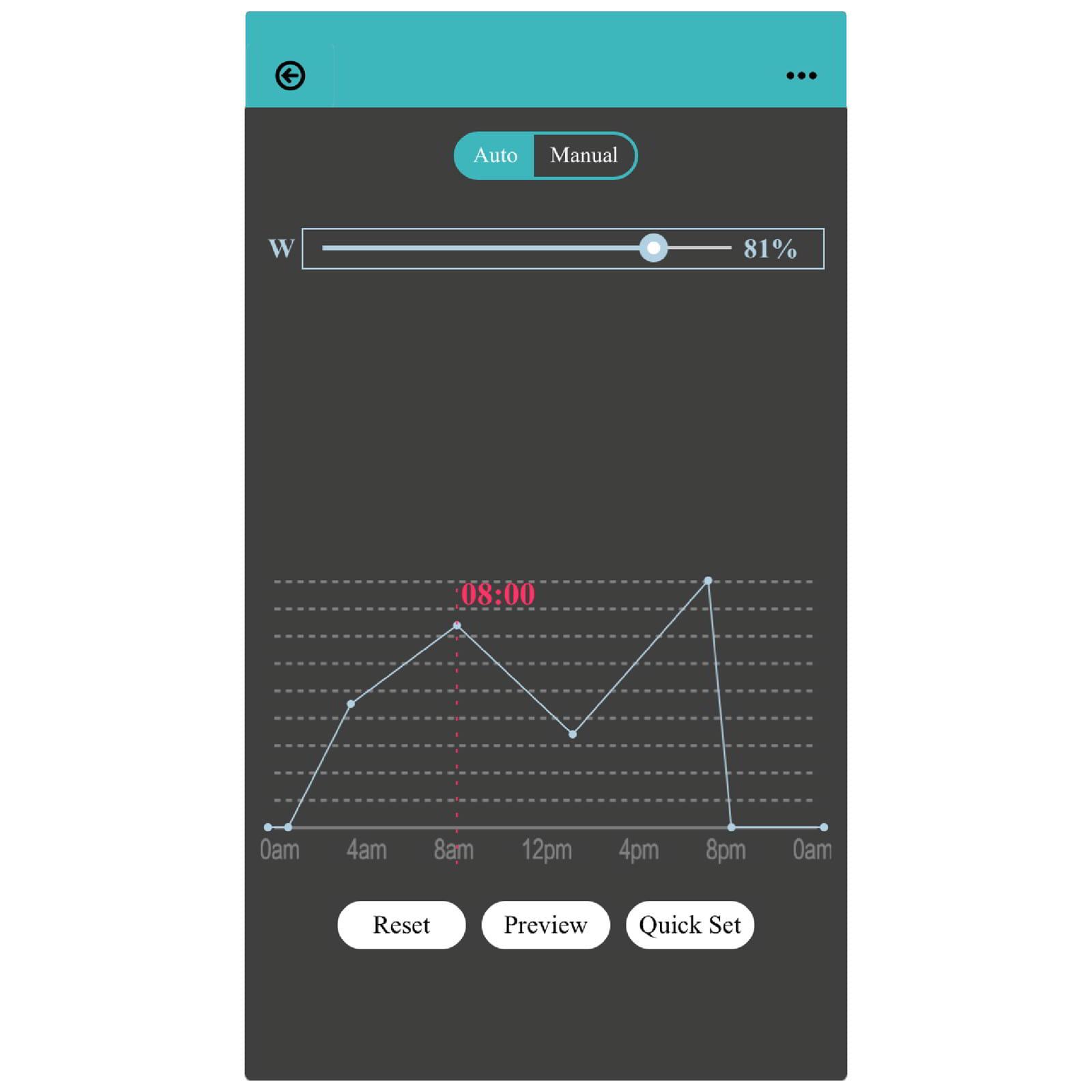
Auto mode on the Commander 1.
We recommend the following procedure: to program an individual daylight curve, you select a point in time in the timeline at the bottom (for example the start of the lighting phase). Then you select the light color to be changed at the top and move the intensity slider as desired. In this very simple way, you now go through all the points in time and light colors that you need for your individual lighting plan for the respective aquarium. Alternatively, you can also change points in time and intensities by activating the respective points directly in the curve. Unfortunately, this method is somewhat less clear, since your finger sometimes covers your settings too much. We therefore recommend the programming procedure as we described it above.
Conveniently, all settings are saved automatically. With the "Preview" button, you can now watch the end result in the form of the complete daylight simulation in time lapse. If you have made a mistake after all, one tap on "Reset" is enough, and all values are reset. Under "QuickSet" you can put together a complete light curve quickly and easily using the presets (see the Manual mode for this). To do this, you simply select a color configuration or a preset, together with the start and end time of the lighting - done. The "Ramptime" indicates how fast or slow the transitions of the individual dimming phases should be.
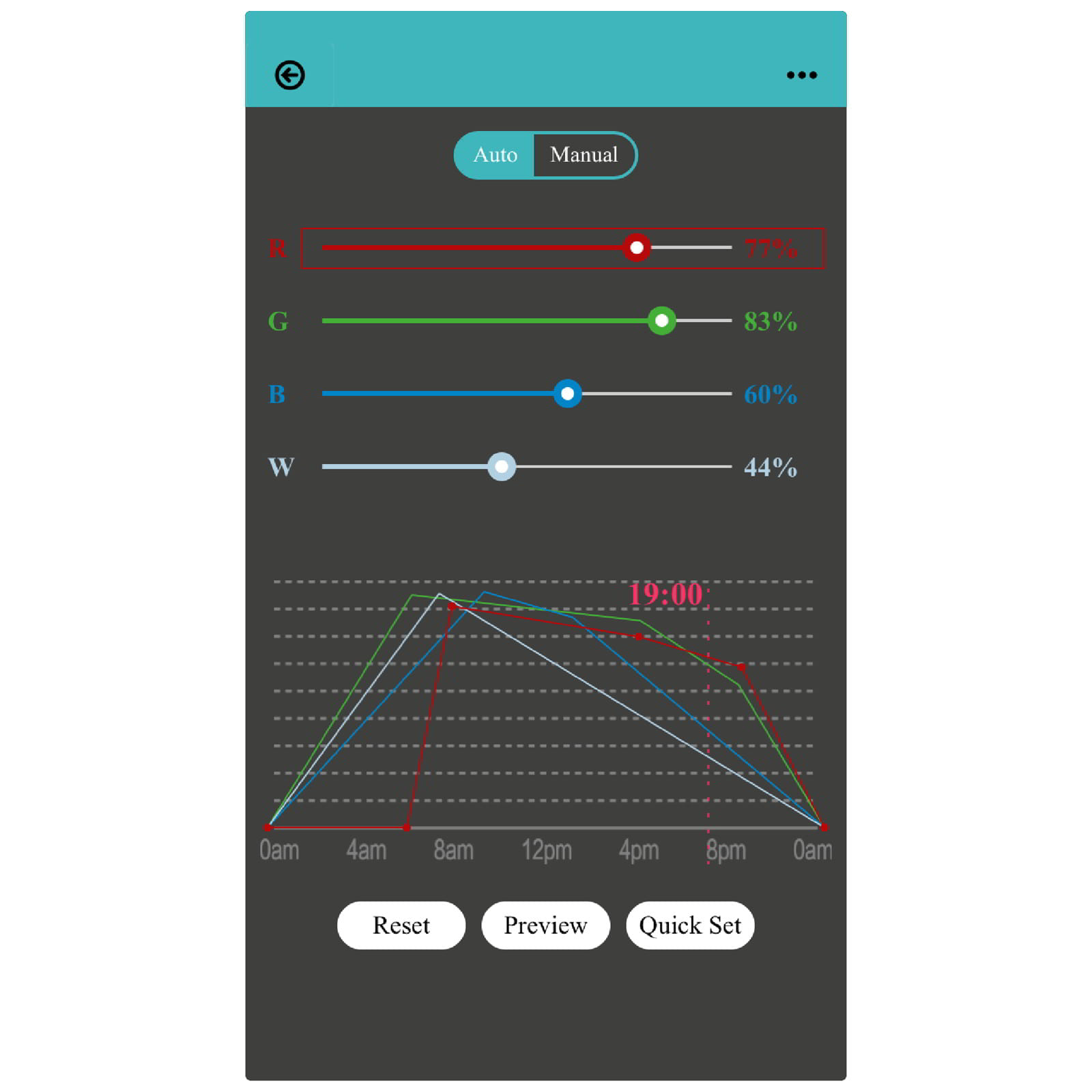
Auto mode interface of the Commander 4.
Manual mode
In manual mode you can try out different color combinations as you please, and the lamp then reacts live and directly to the respective changes. You can also draw on various presets here, each of which has a particular focus.
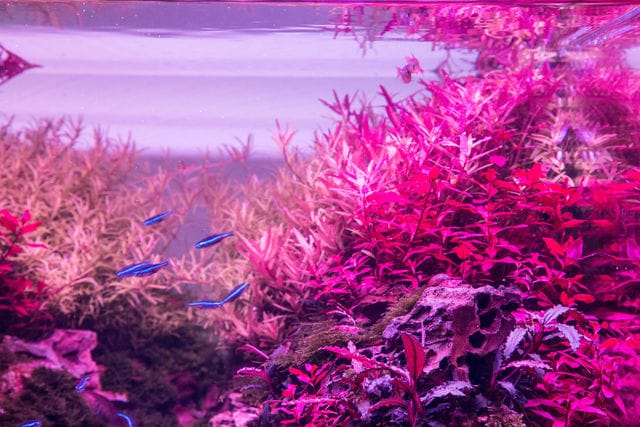
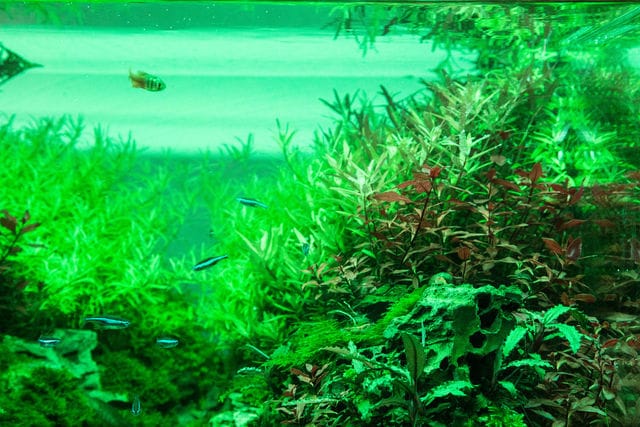
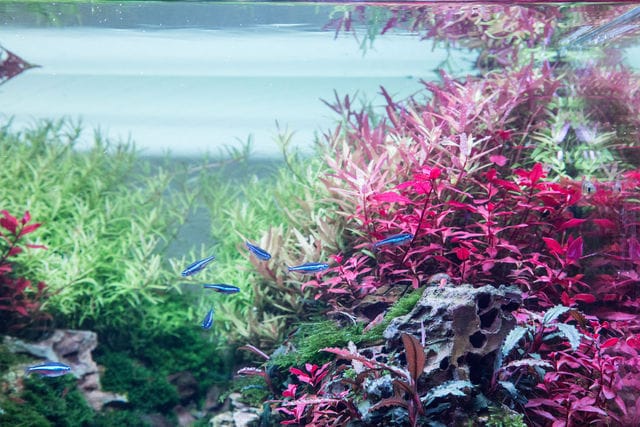
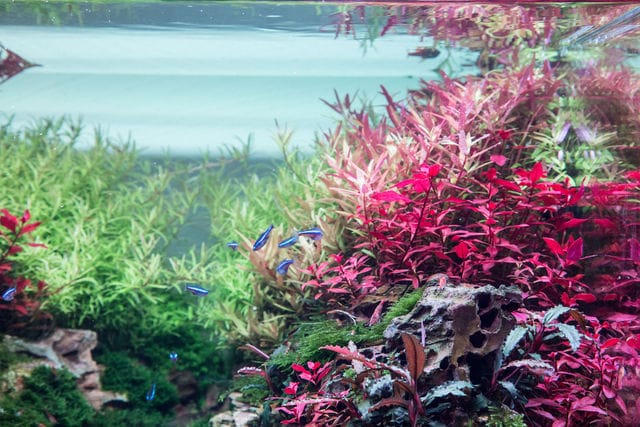
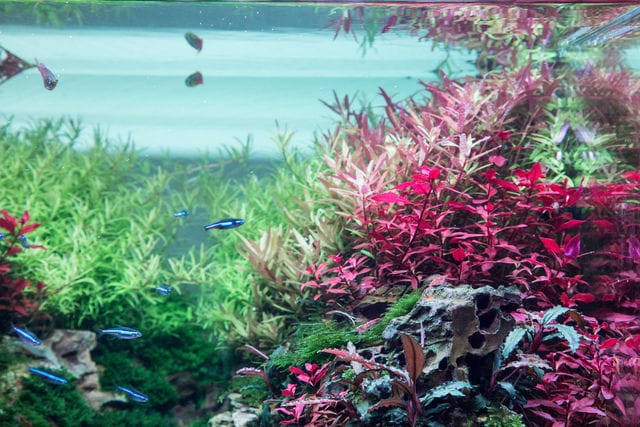
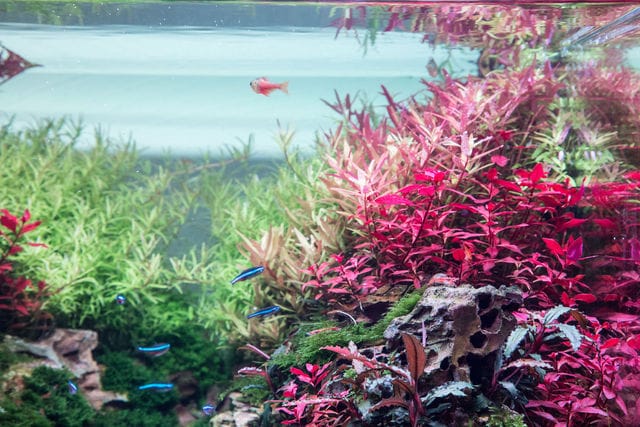
This is what the various presets look like, as used here with a Chihiros RGB A Plus lamp. Of course, the presets look slightly different depending on the lamp type. The order is preset "Red", preset "Green", preset "Bucephalandra", preset "Neon", preset "Shrimp" and "Full Light".
You can also create and save three presets of your own here. The saving happens automatically, which makes operation enormously easier.
FAQ about the Chihiros Commander
Since typical problems occasionally come up when using the Chihiros Commander, we have compiled the most common issues and the corresponding solutions here.
Connection problems between Commander and LED lamp
-
1.1. No Bluetooth connection is established. The app asks whether the indicator LED on the Commander is blinking or not.
If the indicator light is not blinking, it helps to disconnect the Commander from the power supply briefly.
Problems with the app
-
2.1. The programmed daylight curve starts with a time offset relative to the internal timeline.
This happened more often in the early days of the Chihiros app, but the problem should be fixed after the latest updates. If you have the latest version of the app and your operating system but still have this problem, please contact the retailer from whom you bought the controller. -
2.2. After a few hours of lighting, the Commander ends the programmed daylight curve for no reason.
This is a similar phenomenon to the one described in 2.1., which you can write off as a "teething problem" of the early days of the app. Update the app and the problem should be fixed. Another possible reason is that several devices (for example different phones and tablets) may be accessing the lamp via the app. If you have programmed with phone A, but then log in with phone B and make changes, a disrupted daylight curve can result. In these cases, the app always asks the user whether to synchronize with the stored cloud data. If you want to keep the old daylight curve, you should answer yes. If you want to keep current changes, even those made on another device, the question should be answered with no.
Do you still have problems with the app? Then contact your retailer, who will certainly help you. -
2.3. The Commander does not start the daily-curve programming at all, i.e. the lighting stays inactive.
First check whether all cables are connected correctly and whether both the lamp and the controller are/were connected to the power circuit at all times. Operation with an external timer is not necessary here, since the Commander controls the lighting times and thus acts as a timer. If all cables and the power supply have been checked and connected correctly, causes similar to 2.1. and 2.2. may be the reason. Are the app and the operating system of the device up to date? Do several devices have access to the app and overwrite each other's programming? If you can rule out these factors and malfunctions still occur, please contact the customer service of the retailer from whom you bought the Commander.